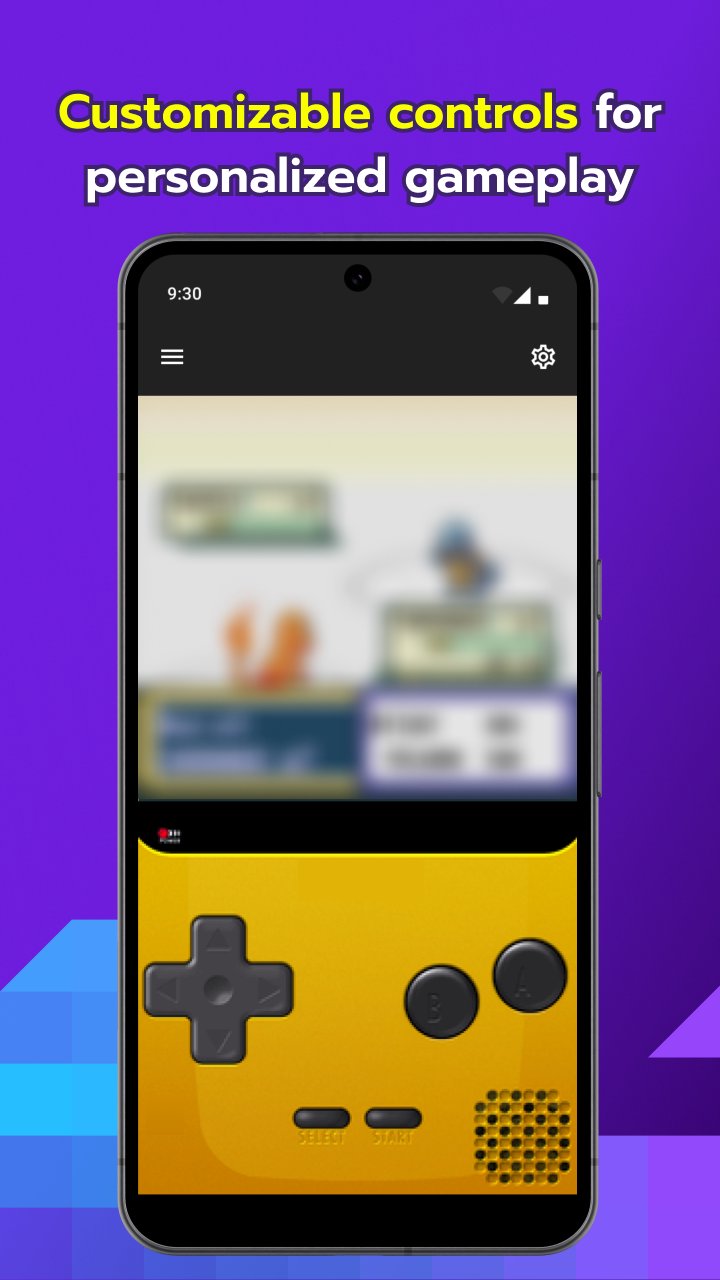
Pokémon Emerald is a heavier ROM than FireRed/LeafGreen — the Battle Frontier area in particular pushes older phones harder, and its RTC handling has a well-known quirk around berries and Trainer rematches. This guide covers the My Boy! settings, fixes, and setup steps specific to Emerald.
| Genre | RPG |
| Save Type | Flash save (in-game “Save” menu) |
| RTC Support | Yes — known “frozen clock” bug on some ROM dumps |
| Link Play Support | Yes — trading, battling, and Record Mix |
| Recommended Fast Forward | 2x (Battle Frontier menus can desync above this) |
| Known Issues | RTC/berry glitch, Battle Frontier slowdown, audio crackle during Contest minigames |
- Recommended My Boy! Settings for Emerald
- Common Emerald-Specific Problems
- The berry glitch (berries never grow, no matter the RTC setting)
- Battle Frontier slowdown
- ROM won’t load or crashes on the intro logo
- Save file missing after switching phones
- Link Play, Trading & Record Mix
- Cheat Codes
- Free vs Pro: Does It Matter for Emerald?
Recommended My Boy! Settings for Emerald
- Frame Skip: Auto is fine everywhere except the Battle Frontier — see the dedicated section below.
- Real-Time Clock: Enable RTC, but be aware Emerald has a documented hardware quirk (carried over from the original cartridge) where the internal clock battery can read as “stopped,” which breaks berry growth and Trainer rematches entirely rather than just slowing them down.
- Sound Emulation: Keep on “Normal.” The Contest minigames and the Battle Frontier’s music layering are the two spots most likely to crackle — if you hear it, check our audio buffer and lag fix guide.
- Fast Forward Multiplier: Cap it at 2x. Emerald’s Battle Frontier menu system in particular can miss inputs at higher multipliers. If you’re getting stutter or glitchy audio while fast-forwarding in general, see how to use fast forward without audio glitches.
Common Emerald-Specific Problems
The berry glitch (berries never grow, no matter the RTC setting)
This is Emerald’s most infamous quirk, and it’s inherited from the original hardware, not something My Boy! introduces. Some Emerald ROM dumps have their internal clock byte permanently flagged as “stopped,” which no emulator RTC setting can override. If enabling RTC in My Boy! doesn’t fix berry growth or Trainer rematch timers, this is almost certainly the cause — it isn’t a settings problem on your end.
Battle Frontier slowdown
The Battle Frontier facilities (especially the Battle Dome and Battle Pyramid) are noticeably heavier than the main game. If you’re on a budget device, pair the in-game “Battle Scene: Off” option with our low-end phone performance tips and guide to making games run faster on low-end devices.
ROM won’t load or crashes on the intro logo
If Emerald hangs specifically on the intro animation, this is typically a file integrity or path issue rather than a device problem. Our complete fix guide for My Boy! not loading ROM files covers the standard checks before you consider re-dumping the ROM.
Save file missing after switching phones
Emerald’s flash-save format survives phone transfers fine as long as the file lands in the right folder. Follow our guide to transferring GBA saves between Android devices, and if you’re relying on in-emulator save states rather than the in-game save, see how save states work in My Boy!.
Back up your .sav file before any My Boy! update — check our complete guide to My Boy! APK versions to see what changed before upgrading.
Link Play, Trading & Record Mix
Emerald supports trading, battling, and the Union Room’s Record Mix feature over My Boy!’s Link Play. Set up the connection itself using our guide to establishing reliable link play between phones, then start from the in-game Union Room before opening My Boy!’s link menu. For how trades specifically behave inside the emulator, see how Pokémon trading works in My Boy!.
Cheat Codes
My Boy! supports GameShark and Action Replay codes for Emerald. If you’re setting cheats up for the first time, start with our guide to setting up cheats in My Boy!, and check our updated 2026 GameShark and Action Replay guide if a code list isn’t applying. Mismatched ROM revisions are the most common reason Emerald codes fail silently.
Free vs Pro: Does It Matter for Emerald?
Emerald’s Battle Frontier grinding makes save states genuinely useful, since runs through facilities like the Battle Pyramid can take a while. Our comparison of My Boy! vs My Boy! Free breaks down whether the unlimited save state slots on Pro are worth it for a game like this.
Related Guides
How to Transfer GBA Saves Between Android Devices
How to Use Fast Forward Without Audio Glitches
How to Save and Load States in My Boy!
How to Set Up Cheats in My Boy!How Pokémon Trading Works in My Boy!
How to Set Up and Play FireRed Online on Mobile
This guide reflects hands-on testing on real Android devices and is updated when new My Boy! versions or Android changes affect these steps. myboyapk.com is an independent fan/guide site and is not affiliated with Nintendo, Game Freak, or the My Boy! developer. We do not host or distribute ROM files.