If your My Boy APK is not loading ROM files, you are not alone. Many Android users encounter situations where the emulator opens normally, but their Game Boy Advance (GBA) games do not appear, fail to load, or show an error message.
The good news is that this issue is usually easy to fix. In most cases, the problem is related to file location, storage permissions, unsupported file formats, or corrupted ROM files.
This guide explains the most common reasons why My Boy APK cannot detect ROM files and provides step-by-step solutions to help you get your games running again.
- Why Is My Boy APK Not Loading ROM Files?
- Check If Your ROM File Is Valid
- Signs of a Corrupted ROM
- Grant Storage Permission to My Boy APK
- How to Enable Storage Permission
- Move ROM Files to an Easy-to-Find Folder
- Extract Compressed ROM Files
- Update My Boy APK
- Verify ROM Folder Settings
- To Change ROM Directory
- Fix Android 13 and Android 14 Storage Restrictions
- Reinstall My Boy Emulator
- Steps
- Check Available Storage Space
- Common Error Messages and Solutions
- ROM Not Found
- Unable to Open File
- Black Screen
- No Games Detected
- Tips to Prevent ROM Loading Problems
- Frequently Asked Questions
- Why does My Boy APK not detect my ROM?
- Can My Boy open ZIP files?
- Why do I get a black screen when opening a game?
- Does Android 14 affect My Boy Emulator?
- Final Thoughts
Why Is My Boy APK Not Loading ROM Files?
Several factors can prevent My Boy Emulator from detecting or loading GBA games.
Common causes include:
- ROM files stored in the wrong folder
- Missing storage permissions
- Corrupted ROM files
- Unsupported archive formats
- Android storage restrictions
- Incomplete ROM downloads
- Outdated emulator versions
Understanding the cause is the first step toward fixing the issue.
Check If Your ROM File Is Valid
Before changing any emulator settings, verify that your ROM file is working properly.
A valid GBA ROM usually has one of these file extensions:
- .gba
- .zip (containing a GBA ROM)
Files with unusual extensions may not work correctly.
Signs of a Corrupted ROM
- File size is unusually small
- ROM fails to load in other emulators
- Download was interrupted
- Black screen appears immediately after launch
If possible, test the ROM in another emulator to confirm whether the file itself is working.
Grant Storage Permission to My Boy APK
Many users accidentally deny storage access when first launching the emulator.
Without storage permission, My Boy cannot scan your device for ROM files.
How to Enable Storage Permission
- Open Android Settings.
- Tap Apps.
- Select My Boy Emulator.
- Open Permissions.
- Enable Files and Media access.
- Restart the emulator.
After granting permission, refresh the ROM directory and check whether your games appear.
Move ROM Files to an Easy-to-Find Folder
Modern Android versions sometimes restrict access to certain folders.
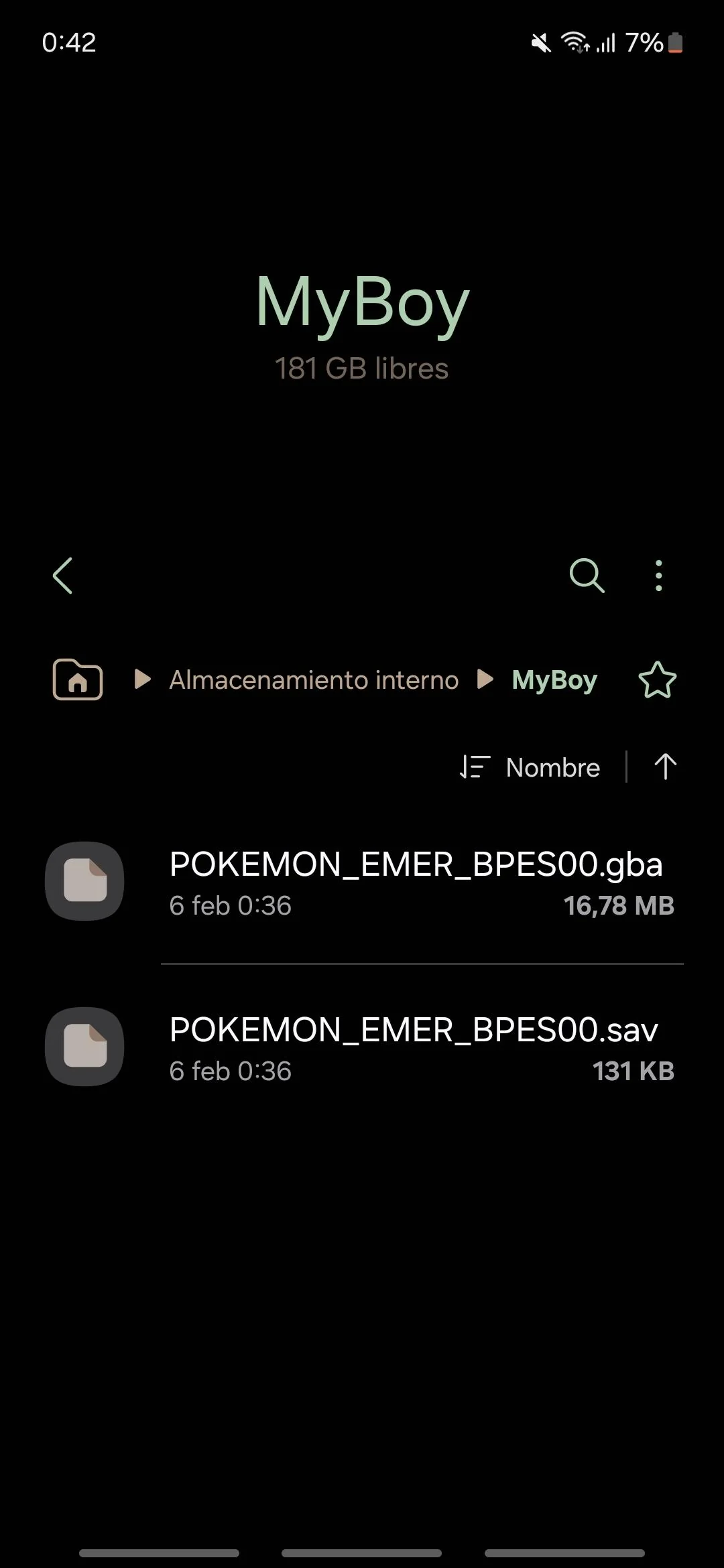
For best results, place ROM files in a dedicated folder.
Example:
Internal Storage
 └── GBA Games
      ├── Pokemon Fire Red.gba
      ├── Pokemon Emerald.gba
      └── Zelda Minish Cap.gba
Avoid storing ROMs inside:
- Downloads subfolders with restrictions
- System directories
- Cloud storage folders
- Hidden folders
Once moved, manually browse to the folder inside My Boy Emulator.
Extract Compressed ROM Files
Some ROM downloads arrive in compressed formats.
My Boy may not recognize certain archive types.
Supported formats usually include:
- .gba
- .zip
Problematic formats include:
- .rar
- .7z
- multi-layer compressed archives
If your ROM is compressed:
- Install a file extraction app.
- Extract the archive.
- Locate the .gba file.
- Open the extracted ROM in My Boy.
Update My Boy APK
Using an outdated version can create compatibility issues with newer Android devices.
Updating may resolve:
- ROM detection problems
- Storage access errors
- Loading failures
- Performance issues
Always use the latest stable version available from trusted sources.
Verify ROM Folder Settings
Sometimes My Boy scans the wrong directory.
To Change ROM Directory
- Open My Boy.
- Select Load Game.
- Browse manually to the ROM folder.
- Choose the correct directory.
- Save the location for future use.
This often fixes ROM detection issues immediately.
Fix Android 13 and Android 14 Storage Restrictions
Recent Android versions introduced stricter file access rules.
If you are using Android 13 or Android 14:
- Grant full file access permissions.
- Store ROMs in Internal Storage.
- Avoid protected system folders.
- Reinstall the emulator if permissions become corrupted.
Many users report that simply moving ROM files to a new folder solves the problem.
Reinstall My Boy Emulator
If none of the above solutions work, reinstalling the emulator may help.
Steps
- Backup save files.
- Uninstall My Boy.
- Restart your phone.
- Install the emulator again.
- Grant storage permissions.
- Reload ROM files.
This process removes damaged settings that may be preventing ROM detection.
Check Available Storage Space
Insufficient storage can cause loading failures.
To check storage:
- Open Settings.
- Select Storage.
- Verify that free space is available.
Keeping at least 2 GB of free space is recommended for smooth emulator performance.
Common Error Messages and Solutions
ROM Not Found
Cause:
- File moved or deleted
Solution:
- Browse to the correct folder
Unable to Open File
Cause:
- Unsupported format
Solution:
- Extract archive and use .gba file
Black Screen
Cause:
- Corrupted ROM
Solution:
- Replace ROM with a verified copy
No Games Detected
Cause:
- Storage permission missing
Solution:
- Enable file access permissions
Tips to Prevent ROM Loading Problems
Follow these best practices:
- Keep ROMs in a dedicated GBA folder.
- Use proper .gba files.
- Update My Boy regularly.
- Avoid moving ROMs after loading them.
- Backup save files frequently.
- Verify downloads before importing them.
These simple habits reduce the chances of future issues.
Frequently Asked Questions
Why does My Boy APK not detect my ROM?
The most common reasons are missing storage permissions, incorrect folder locations, or unsupported file formats.
Can My Boy open ZIP files?
Yes, many ZIP-compressed GBA ROMs work directly. However, extracting the ROM often improves compatibility.
Why do I get a black screen when opening a game?
A corrupted ROM file is usually responsible. Try downloading a verified copy and test again.
Does Android 14 affect My Boy Emulator?
Yes. New Android storage restrictions can sometimes prevent the emulator from accessing ROM files until permissions are granted correctly.
Final Thoughts
When My Boy APK is not loading ROM files, the issue is usually related to permissions, file locations, or ROM compatibility. By checking storage access, verifying ROM formats, and organizing your game files properly, most loading problems can be fixed within a few minutes.
If the problem continues, reinstalling the emulator and using a verified ROM file are often the most effective solutions.