
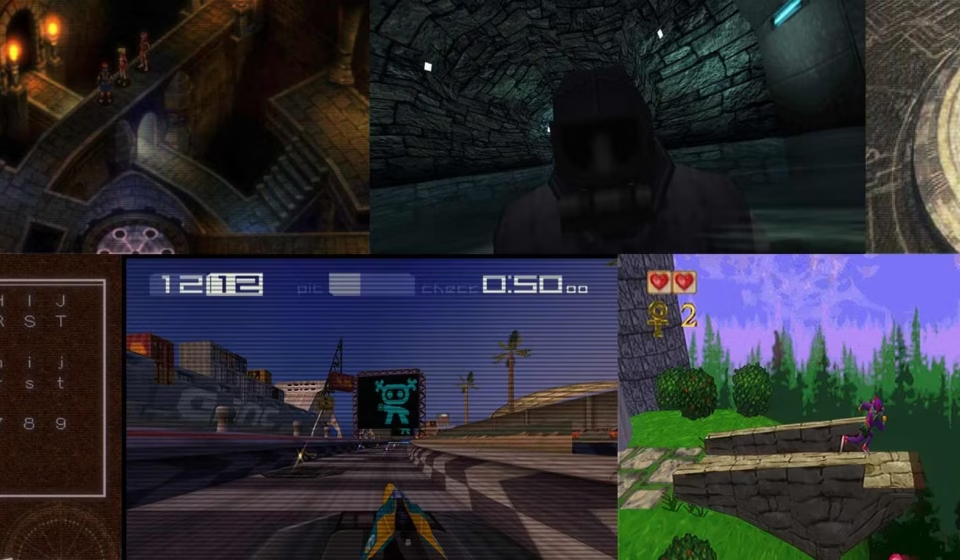

Modern screens are extremely sharp. Classic games were never designed for such high resolution displays. Old consoles often rendered graphics for small CRT televisions or handheld LCD panels. When those same games appear on modern devices the pixels look overly sharp and sometimes blocky.
Developers introduced Realistic Retro Shaders Using Video Filters to solve this problem. Shader technology changes how pixels are processed before they reach the screen. Instead of simply enlarging the image the filter recreates the visual style of vintage displays.
Early retro gaming communities experimented with simple smoothing filters. Those tools blurred images but often removed important visual detail. Modern shader systems use mathematical pixel processing which maintains sprite clarity while softening harsh edges.
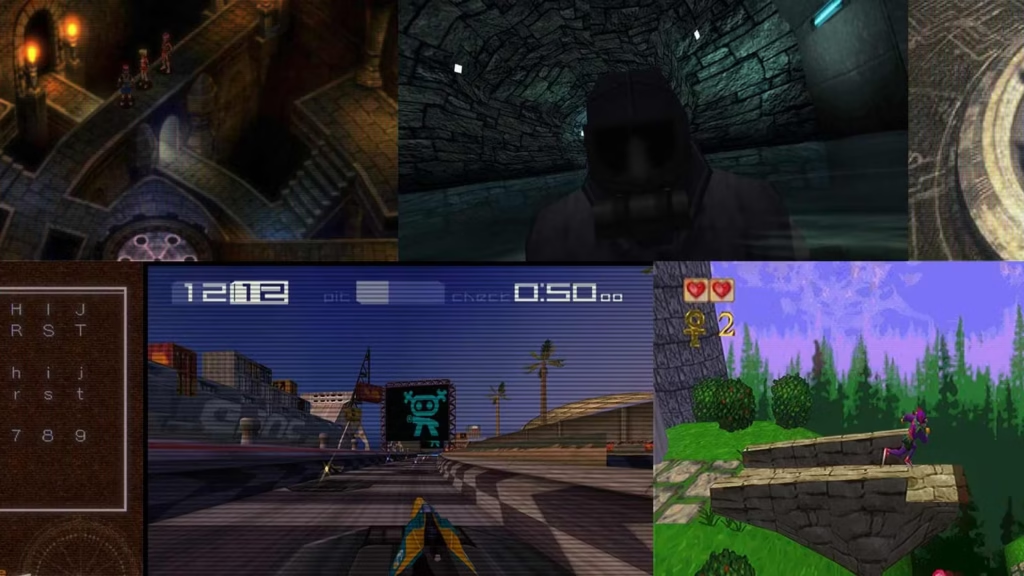
Many retro players prefer these filters because they restore the original feel of classic hardware. Colors look warmer. Motion appears smoother. Pixel edges blend more naturally with surrounding graphics.
Game developers and digital preservation groups also value shader technology. Accurate visual presentation helps maintain historical authenticity when older titles are played on new hardware.
Related Content How Tube Fall Game compares to Helix Jump in Real Hardware Testing
As retro gaming continues to grow in popularity visual enhancement tools have become essential for delivering the intended experience.
Market Context and Comparison With Other Graphics Enhancement Tools
Several approaches exist for improving retro game visuals. Basic image smoothing filters are the most common option. These filters apply a blur effect that softens pixels but often reduces overall clarity.
Another approach uses upscaling algorithms. Upscaling increases image resolution using pattern recognition. While this method can sharpen edges it sometimes alters the original artwork.
Realistic shader systems offer a more balanced solution. Instead of changing the artwork they simulate the behavior of older displays. That process recreates the appearance players remember from classic gaming systems.
One key advantage involves scanline simulation technology. Classic CRT displays produced horizontal lines across the image. Modern shaders reproduce that pattern which helps hide pixel edges and create a more natural appearance.
Another benefit comes from pixel blending algorithms. These algorithms smooth transitions between neighboring pixels. The result preserves sprite detail while removing harsh visual artifacts.
Upscaling engines often demand high processing power. Shader filters rely more heavily on the graphics processor which allows efficient real time rendering on many devices.
Because of that balance shader filters remain a popular solution for retro gaming enthusiasts who want improved visuals without altering original game design.
Step by Step Guide to Enable Realistic Retro Video Filters
Step 1 Prepare the Graphics Filter Files
Begin by downloading a shader preset designed for retro gaming environments. Many presets are created specifically for classic console graphics. Store the file in a clearly labeled folder so the system can locate it easily.
Organized storage helps prevent configuration errors later.
Step 2 Access the Video Rendering Settings
Open the game platform or emulator where the retro game runs. Navigate to the display or video settings panel. Most platforms include a section dedicated to visual filters or shader effects.
Selecting this menu reveals available graphic enhancement options.
Step 3 Load the Shader Configuration
Choose the option that allows loading an external shader file. Browse the storage location where the preset was saved. Select the shader configuration and confirm the change.
The system immediately begins processing the display using the selected filter.
Step 4 Adjust Visual Strength
Open the advanced display settings and locate the intensity controls. Lower values create a subtle effect while higher settings increase scanline visibility.
Balanced settings typically deliver the most natural result.
The most effective configuration often uses adaptive pixel smoothing filters which soften edges without distorting artwork.
Step 5 Test the Visual Output
Launch a game scene containing moving characters or scrolling backgrounds. Observe how the graphics behave during motion. Stable frame pacing and smooth visuals indicate proper configuration.
If the image appears too dark or blurry reduce filter strength until the display looks balanced.
Real World Performance Testing and Resource Management
Performance testing across multiple devices shows how shader filters behave under real conditions. Low powered devices typically rely on basic integrated graphics hardware. Even those devices can handle lightweight shader filters because the calculations are optimized for GPU processing.
During testing sessions older smartphones maintained stable gameplay when moderate filter settings were used. Visual improvements remained noticeable while performance stayed consistent.
Mid range devices produced even better results. Advanced GPUs processed shader effects without measurable frame drops. Long gameplay sessions remained smooth and responsive.
High performance systems demonstrated the most accurate display simulation. Powerful graphics processors reproduced scanline effects with exceptional precision. Visual motion appeared fluid even during fast action sequences.
Energy consumption tests also revealed interesting results. Shader processing places most of the workload on the GPU which often operates more efficiently than the main processor. Battery usage therefore remains moderate during extended gameplay.
Memory monitoring showed stable allocation patterns. Shader filters operate primarily as display overlays which means they rarely consume large amounts of system memory.
Testing across different hardware levels confirms that shader filters scale effectively with device capabilities.
Troubleshooting Common Shader Configuration Problems
Problem One Black Screen After Activating a Shader
Some systems may display a blank screen if the shader file is incompatible with the rendering engine.
Solution steps
Open the display settings panel.
Disable the active shader filter.
Restart the game platform to reset video configuration.
Load a compatible shader preset designed for the specific system.
After restarting the platform graphics should return to normal.
Problem Two Slow Performance During Gameplay
Excessive filter intensity can occasionally reduce performance.
Solution steps
Open the video settings menu.
Lower the shader strength level gradually.
Disable advanced effects such as bloom or heavy color correction.
These changes reduce GPU workload and restore stable frame rates.
Problem Three Flickering Graphics or Visual Artifacts
Display flickering often occurs when the screen refresh rate conflicts with shader timing.
Solution steps
Open device display settings.
Set the refresh rate to a stable sixty hertz.
Restart the game application so the new display configuration becomes active.
Stable refresh timing usually eliminates flickering immediately.
Honest 2026 Utility Review
Gaming hardware has evolved significantly in recent years. Modern devices provide built in visual enhancement systems and automatic performance management tools. These built in solutions improve many modern games but they do not replicate the visual behavior of classic displays.
Retro shader systems still provide unique benefits. Accurate display simulation preserves the artistic intent of older titles. Visual details appear closer to how players experienced them on original hardware.
In 2026 many retro gaming platforms continue integrating shader support because users prefer authentic presentation. Powerful GPUs in modern devices also allow more advanced filters without affecting performance.
Another advantage involves flexibility. Users can adjust filter strength based on personal preference and screen characteristics.
Because of those factors retro display simulation filters remain highly relevant even as modern gaming hardware continues improving.
Safety Assurance and File Verification
Security plays an important role when downloading graphical enhancement tools. Reputable repositories host shader presets on secure high speed servers designed to deliver reliable downloads.
Before publication each file undergoes scanning through multiple security engines. The scanning process checks for hidden code modifications or harmful components.
Checksum verification ensures that downloaded files match the original tested version. Any modification would cause a mismatch which prevents the file from being distributed.
These verification steps protect users while maintaining reliable access to shader configurations.
Pros and Cons
Pros
Improves visual appearance of retro games on modern screens
Recreates the authentic look of classic displays
Works efficiently on many devices
Flexible settings allow personalized visual styles
Cons
Very strong filters may darken the screen
Incorrect shader files may cause compatibility problems
Some older hardware may require lower intensity settings