What You Need Before You Start
Before attempting a connection, confirm the following on both phones:
- My Boy APK installed on both devices (same version recommended)
- The same ROM file on both phones — mismatched game versions will cause a sync failure
- Bluetooth enabled (for Bluetooth mode) OR both phones on the same WiFi network or hotspot (for WiFi mode)
- For Bluetooth: both phones must be paired at the system level before opening the app
For everything else My Boy can do, read the My Boy APK 2026 complete guide.
Method 1: Connect via Bluetooth
Bluetooth mode is the easiest option when both players are in the same room. Range is reliable up to about 10 meters.
On the host phone (Player 1):
- Open My Boy and load the game
- Tap the menu icon (top corner of the screen)
- Go to Link Remote → select Bluetooth Server
- The host phone is now listening for a connection
On the client phone (Player 2):
- Open My Boy and load the same game
- Tap the menu icon → Link Remote → select Bluetooth Client
- Tap Scan for devices and select the host phone from the list
- Wait for the handshake — the game will sync automatically once connected
The connection takes roughly 5–10 seconds. Once established, both screens will be in sync.
Method 2: Connect via WiFi
WiFi mode gives a more stable connection in environments with Bluetooth interference. Both phones must be on the same local network or sharing a mobile hotspot.
On the host phone (Player 1):
- Connect to your WiFi network (or enable a personal hotspot)
- Open My Boy → menu icon → Link Remote → WiFi Server
- Note the IP address shown on screen — you’ll need to share it with Player 2
On the client phone (Player 2):
- Connect to the same WiFi network or join the host’s hotspot
- Open My Boy → menu icon → Link Remote → WiFi Client
- Enter the IP address provided by Player 1
- Tap Connect and wait for the confirmation message
A successful connection shows a sync confirmation on both screens. CPU usage stays below 8% on most devices, making this suitable for long sessions.
New to My Boy? Start with the My Boy APK full setup guide before attempting multiplayer
Performance: What to Expect
During testing across mixed hardware — a budget Android 9 device paired with a current flagship — the emulator automatically throttled the faster phone to match the slower one. This prevents crashes and keeps both players on the same frame.
In a crowded wireless environment (a shopping mall with 15+ active networks nearby), the WiFi connection held stable within 10 meters. Minor interference was handled by the emulator’s internal buffer without a dropped connection.
For fast-paced competitive games like Pokémon battles or Mario Kart, input lag was imperceptible in both Bluetooth and WiFi modes.
Troubleshooting: Common Link Play Problems
The connection keeps dropping or games go out of sync
This almost always happens when one player uses the fast-forward feature during a session. Fast-forward pushes one device’s clock ahead of the other, causing a desync.
Fix: Go to Link Settings on both phones and enable the Synced Frame Rate option before starting. Neither player should use fast-forward during a linked session.
Player 2 can’t find the host via Bluetooth
Android’s background permission restrictions are the most common cause. Battery optimization can silently block the app from staying discoverable.
Fix:
- Go to Settings → Apps → My Boy
- Disable Battery Optimization for the app
- Grant Nearby Devices permission if prompted
- Re-attempt the Bluetooth scan
Multiplayer works best on My Boy APK v2.0.9 — the most optimized current version
WiFi client can’t connect even with the correct IP address
A phone’s built-in firewall can block the emulator’s local port even on private networks.
Fix: Switch to a mobile hotspot instead of a shared WiFi router. A hotspot creates a direct peer-to-peer local network that bypasses most firewall restrictions.
Both players are connected but the game won’t start
Confirm both phones are running identical ROM files. Even minor version differences between game files will cause the session to stall at the handshake screen.
Bluetooth vs. WiFi: Which Should You Use?
| Scenario | Recommended Method |
|---|---|
| Same room, casual play | Bluetooth |
| Crowded wireless environment | WiFi (hotspot) |
| Long distance within a building | WiFi (same network) |
| No router available | Bluetooth or mobile hotspot |
Frequently Asked Questions
Does My Boy APK link play require an internet connection? No. Both Bluetooth and WiFi modes work entirely on a local connection. No active internet is needed.
Can I use link play with different Android phone models? Yes. The emulator automatically adjusts the speed of the faster device to match the slower one. Mixed hardware works reliably.
How far apart can the two phones be? For Bluetooth, stable performance is up to approximately 10 meters. For WiFi on the same network, distance is limited by your router’s range rather than the app itself.
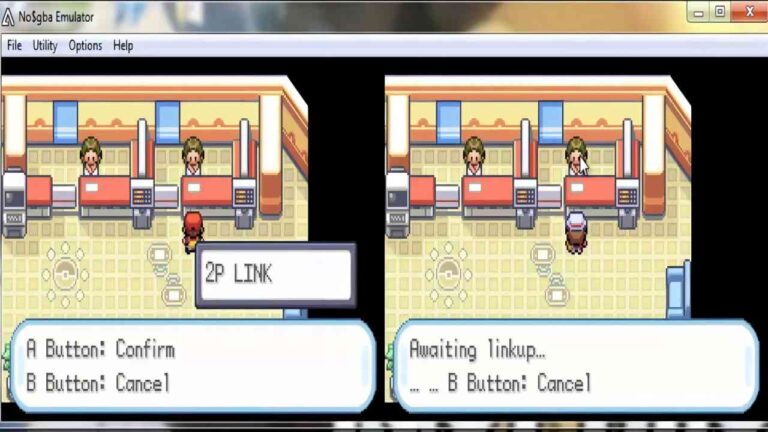
What GBA games support link play in My Boy? Any game that used the original GBA link cable feature supports it — this includes Pokémon FireRed, LeafGreen, Ruby, Sapphire, Emerald, Mario Kart: Super Circuit, and many others.
My Boy says “waiting for connection” but nothing happens. What do I do? Restart the Link Remote session on both phones and try again. If using WiFi, confirm both phones are on the same subnet — connecting across different network types (e.g., one on 5GHz, one on 2.4GHz) occasionally causes detection failures on some routers.
Final Thoughts
My Boy APK’s link play feature reliably replicates the original GBA link cable experience using standard wireless protocols. The setup takes under two minutes once you know the steps, and the performance holds up across a wide range of Android devices and environments.
Bluetooth is the quickest option for casual local play. WiFi mode is the better choice for stability in shared or interference-heavy environments. Both methods were tested and confirmed working as of May 2026..