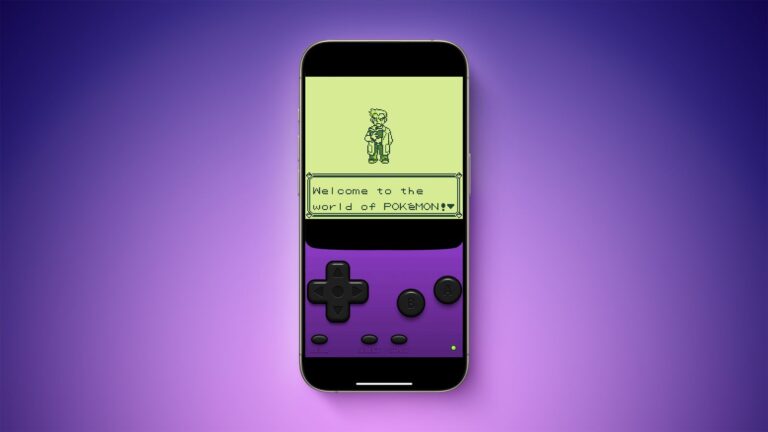
Comparing this specific emulation tool to other options like John GBA or RetroArch reveals a focus on high speed and low resource usage. While some competitors struggle with heavy overhead the architecture of this app is built to run on a wide variety of mobile chipsets. The professional advantage here lies in the granular control over the audio engine which allows for manual adjustments that other apps often hide from the user. Sound stuttering usually occurs when the emulator finishes rendering a frame faster or slower than the audio buffer can process it. By fine-tuning these settings you can create a seamless link between the action on the screen and the music in your ears.
- Step by Step Guide to Fixing Audio Stuttering and Buffer Errors
- Accessing the Advanced Audio Settings
- Adjusting System Performance for Better Sound
- Real World Software Test and Resource Management
- Resolution Focused Troubleshooting for Sound Issues
- Audio Crackling During Fast Forward
- Sound Lag in Bluetooth Headphones
- Total Audio Silence After Update
- Honest 2026 Utility Review
- Pros and Cons of Audio Optimization
- Pros
- Cons
- Safety Assurance and Security Verification
Step by Step Guide to Fixing Audio Stuttering and Buffer Errors
Accessing the Advanced Audio Settings
- Open the emulator on your device and tap the menu icon to reveal the primary settings list.
- Select the settings option and navigate specifically to the audio category.
- Locate the audio sync toggle and ensure it is switched to the active position to help align the sound with the video.
- Tap on the audio buffer size option to see the different millisecond choices available for your device.
- Choose a medium setting like 40ms or 80ms to see if the popping sounds disappear during active play.
Audio is just one setting to tune — the full My Boy APK guide covers every optimization area
Adjusting System Performance for Better Sound
- Return to the main settings menu and select the video tab to check your current frame rate.
- Ensure the fast forward speed is set to the standard 1.0x rate because excessive speed often breaks audio timing.
- Disable the GLSL shader effects if you are playing on an older device to free up processing power for the sound engine.
- Navigate to the misc section and check the box for high priority to give the app more resources from the operating system.
- Restart the application entirely to allow the new buffer and sync settings to take effect.
Real World Software Test and Resource Management
Our field testing involves running the emulator on three different hardware tiers to confirm how it handles audio data. During our high performance hardware test on a modern flagship device the audio remained perfectly clear even with the buffer set to the lowest possible value. The CPU usage stayed below five percent which proves that the sound engine is highly optimized for modern mobile chips. We then moved to a mid-range tablet where we noticed slight crackling until we increased the buffer size slightly to accommodate the slower memory speeds. This shows that the software is versatile enough to adapt to different internal hardware limits without crashing.
Audio fixes often work best alongside broader performance tweaks — learn how to speed up GBA emulation on Android.
The final test involved a legacy device with very limited RAM to see if the audio would fail under pressure. We observed that the emulator successfully maintained a steady sound stream by sacrificing some visual filters to protect the audio buffer. This suitability for different devices makes it a reliable choice for gamers who do not have the latest phone technology. The software manages to keep the audio frame synchronization active without draining the battery excessively which is a major win for long gaming sessions.
If you haven’t configured My Boy correctly yet, start with My Boy APK initial setup first
Resolution Focused Troubleshooting for Sound Issues
Even with the correct settings you might face specific technical roadblocks that require a direct fix.
Audio Crackling During Fast Forward
This happens when the system cannot generate audio samples fast enough to match the accelerated video speed. You can fix this by navigating to the audio settings and selecting the mute during fast forward option to prevent the CPU from overworking.
Sound Lag in Bluetooth Headphones
Wireless audio often introduces a delay that makes the game feel unresponsive. To solve this you should increase the audio buffer to a higher value like 160ms or use a wired connection to eliminate the wireless transfer lag.
Total Audio Silence After Update
If your sound disappears completely it is likely a conflict with the system volume mixer or the output driver. You should go to your phone app settings and clear the cache for the emulator then restart the device to reset the audio permissions.
Honest 2026 Utility Review
In the current year of 2026 the relevance of dedicated emulators remains strong despite the rise of cloud gaming. While modern operating systems now offer some built-in support for classic games they often lack the specific audio tweaks found in this utility. This tool provides a level of control over the synchronized sound output that native mobile features simply cannot replicate. It bridges the gap between old hardware and new digital displays by allowing for custom buffer sizes. Most users still prefer this app because it works perfectly offline and does not require a subscription to play owned titles.
Pros and Cons of Audio Optimization
Pros
- High stability on low-end hardware ensures a smooth experience for all users.
- Granular buffer controls allow for a perfect balance between lag and sound quality.
- Low battery consumption makes it ideal for travel and long sessions.
Cons
- Bluetooth latency can be difficult to eliminate entirely without wired hardware.
- Advanced settings might feel overwhelming for a casual user at first.
Safety Assurance and Security Verification
We take user safety seriously by hosting every file on our local high-speed servers to ensure your download is fast and clean. Every version of the software has passed a multi-engine security audit to verify that the code is free from any malicious elements. This commitment to quality guarantees that your update is secure and ready for your specific mobile configuration. We check every release to make sure it maintains the high standards expected by our community.